Working with SkylineGlobe Server
SkylineGlobe Server (SGS) is a private cloud solution that provides a comprehensive set of web services for publishing, storing, managing and streaming 3D spatial data. Remote PhotoMesh clients can connect to a SkylineGlobe Server to load imagery, elevation and 3DML layers into their projects. All data on your server is cataloged and referenced so clients can easily find the specific published layer required.
For more information about SkylineGlobe Server, see the SkylineGlobe Server User Guide.
Connecting to a SkylineGlobe Server
To connect to a SkylineGlobe Server:
1. On the Tools tab, in the SkylineGlobe group, click Disconnect. The SkylineGlobe Server dialog is displayed.
Note: If you are already connected to a server and want to connect to a different one, on the Tools tab, in the SkylineGlobe group, click Connect. In the Connect to SkylineGlobe Server dialog that is displayed, first click Disconnect, and then enter the new server connection information.
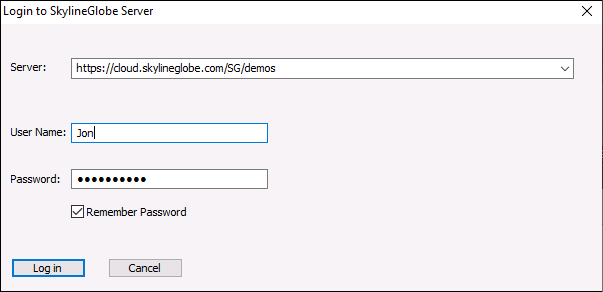
Connect to SkylineGlobe Server Dialog
2. Enter the connection information and click Connect:
|
Parameter |
Activity |
|
Server |
The Server Host Name, which is the URL link of the server. |
|
User Name |
User name to access the server (mandatory). |
|
Password |
Enter the password. |
|
Remember Password |
Select this option to save the password. The password will be saved and will be displayed using asterisks the next time the SkylineGlobe Server dialog is displayed. |
The values that you enter for Server and User Name are saved. The next time you load this window, this information is automatically filled in.
Loading SkylineGlobe Layers
To add a layer from a SkylineGlobe server:
1. On the Tools tab, in the Objects and Layers group, click the required layer type (Imagery Layer, Elevation Layer, or 3DML). The Browse dialog is displayed.
2. In the From Server section, select SkylineGlobe Server as the Server Type, and click Select. The SkylineGlobe Layers dialog is displayed, showing the selected layer type.
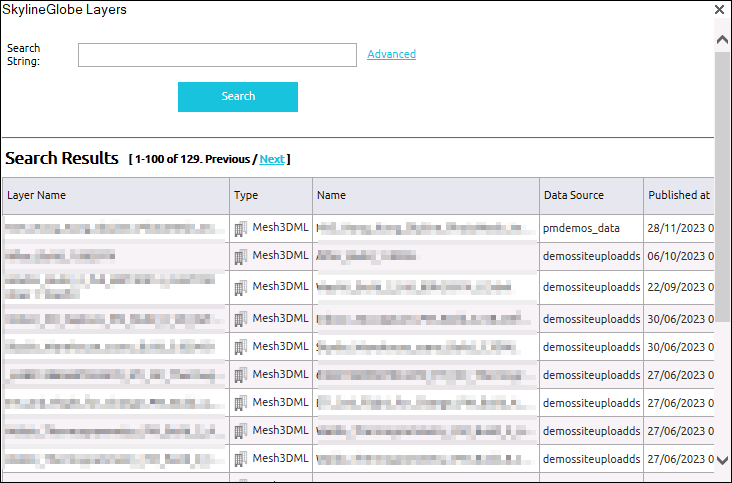
SkylineGlobe Layers Dialog
3. If you aren’t already connected to the required SkylineGlobe Server, the Connect to SkylineGlobe Server dialog is first displayed to enable you to connect. See "Connecting to a SkylineGlobe Server" in this chapter for information. After connecting, the SkylineGlobe Layers dialog is displayed showing all layer types.
4. Search for the required layer. See "Searching for SkylineGlobe Layers" in this chapter.
5. Select the layer you want to load, and click Load Layer. Use CTRL-click or SHIFT-click to multi-select layers.
Searching for SkylineGlobe Layers
To search for a layer in the SkylineGlobe Layers dialog:
Note: If only a basic search field is displayed, and you want more advanced search options, click the Advanced link next to the Search String field.
1. If you want to search for layers whose property information contains a specific string (e.g., ID, Name, Data Source), do the following:
a. In the Search String field, type a search string or enter an attribute, condition, and value and click Insert String  . The search expression is displayed in the Search string field.
b. If you want to include additional strings in your search expression, select a connector:  and OR or, and repeat step a for the next condition.
c. If you want to filter by group or owner, select the required value in the respective field.
2. If you want to search according to geographic location, do the following:
a. Click Set Bounding Box, and select the required region by drawing a rectangle on the map on the right side of the page around the area to which the search is confined
b. From the Map field, select one of the following:
· Do Not Use – To ignore the bounding box.
· Contained – If you want to search only for layers whose entire geometry fall within the bounding box.
· Intersect – If you want to search for all layers whose geometry intersect at any point with the bounding box.
c. If you want to clear the bounding box, click Clear.
3. Click Search. Your search results are displayed in the search results list at the bottom of the page.