Get Started
About TerraExplorer Fusion
TerraExplorer Fusion is a powerful 3D geospatial viewer that enables you to view and analyze high-resolution, stunningly realistic 3D content right in your web browser with no download or installation required. TerraExplorer Fusion enables viewing of most online layers and objects published to SkylineGlobe Server, performing powerful measurements and analysis operations, and dynamically exploring the 3D World via presentations which merge a custom flight path with distinct displays of the project.
The new TerraExplorer Fusion is based on TerraExplorer Desktop source code converted to WebAssembly. This conversion technology provides exceptional compatibility, enabling most of the original TerraExplorer Desktop code to run as-is in web browsers with numerous advantages, including support for nearly all the layers and objects supported by the Desktop version, consistent API for code sharing, and powerful performance.
TerraExplorer Fusion is available in three versions, Viewer, Plus, and Lite, to accommodate different user requirements. The Plus edition provides advanced analysis tools, as well as enhanced integration with SkylineGlobe Server, enabling efficient layer loading, feature layer editing, and direct project publishing on the server.
The Lite version provides limited functionality for “public” projects. Public projects can be viewed in TerraExplorer Fusion without counting toward the site’s concurrent user limit – but only in Lite mode. This mode includes basic navigation and viewing capabilities, as well as access to the Distance, Area, and Query tools.
Every deployment of SkylineGlobe Server includes the capability to upgrade to TerraExplorer Fusion Plus level. This upgrade occurs dynamically in TerraExplorer Fusion when a project is accessed from a SkylineGlobe server with an active Plus license. The Plus license grants Plus capabilities across the server, while allowing for the selective restriction of certain sites to Viewer-only mode. Tools exclusive to the TerraExplorer Fusion Plus edition are clearly marked in the documentation.
TerraExplorer Fusion requires a secure environment and operates exclusively over HTTPS. It is recommended to enable TLS (commonly referred to as SSL) on SkylineGlobe Server to ensure secure access and full functionality.
TerraExplorer Fusion’s styling and functionality can easily be customized to match a company's branding and provide the required tools and capabilities. Using TerraExplorer Fusion (TEF) as a foundation, you can leverage the application framework and functionality, thus reducing the amount of programming required for your customized solution.
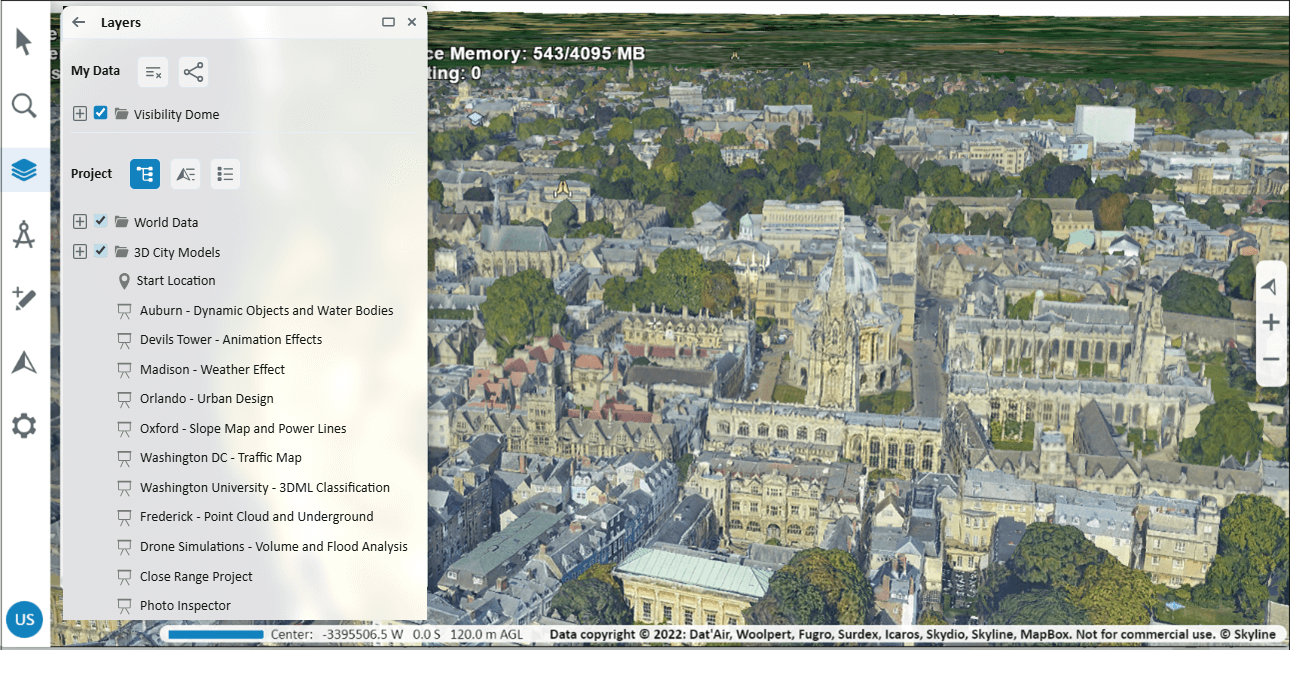
Product Capabilities:
§ Explore Data – TerraExplorer Fusion supports a comprehensive range of online geospatial layers streamed from SkylineGlobe Server and other online services. These include imagery, elevation, 3D, point cloud, and feature layers, along with various types of objects and effects.
§ Measure and Analyze – Robust measurement, comparison, terrain analysis, and line of sight tools make it easy to extract vital intelligence from your geospatial data.
§ Data Query – The Information Query tool provides you with data about any point or object in the 3D World. For a point on the terrain, precise location and elevation information is provided, while for a feature object, the tool also displays the object’s perimeter and area, and attribute information if available.
§ Load Layers – Load range of geospatial data including, 3D, feature, imagery, elevation, point cloud and project layers from SkylineGlobe Server.
§ Drawing Tools – Annotate the terrain with labels, icons, polylines and polygons for marking and representing geographical features or areas of interest.
§ Publishing Tool – Upload and share TerraExplorer projects on SkylineGlobe Server, facilitating easy access, collaboration, and management of geospatial projects.
§ Optimized Performance – Fast loading times and smooth navigation.
§ Lightweight Online Viewer – Based on the HTML/WebGL standard, TerraExplorer Fusion requires no plugin or application installation.
§ Multi-Platform, Multi-Browser – TerraExplorer Fusion provides support for multiple platforms (Windows, Mac, Linux) and multiple web browsers (Chrome, Edge).
Here it isNew Features
Lite Mode for Public Projects
TerraExplorer Fusion now supports a Lite mode, designed for accessing public projects without consuming a site’s concurrent user license. When a user opens a public TerraExplorer project, SkylineGlobe Server automatically switches Fusion into Lite mode. In Lite mode, users can access:
§ Basic navigation and viewing functionality
§ Distance and Area tools
§ The Query tool
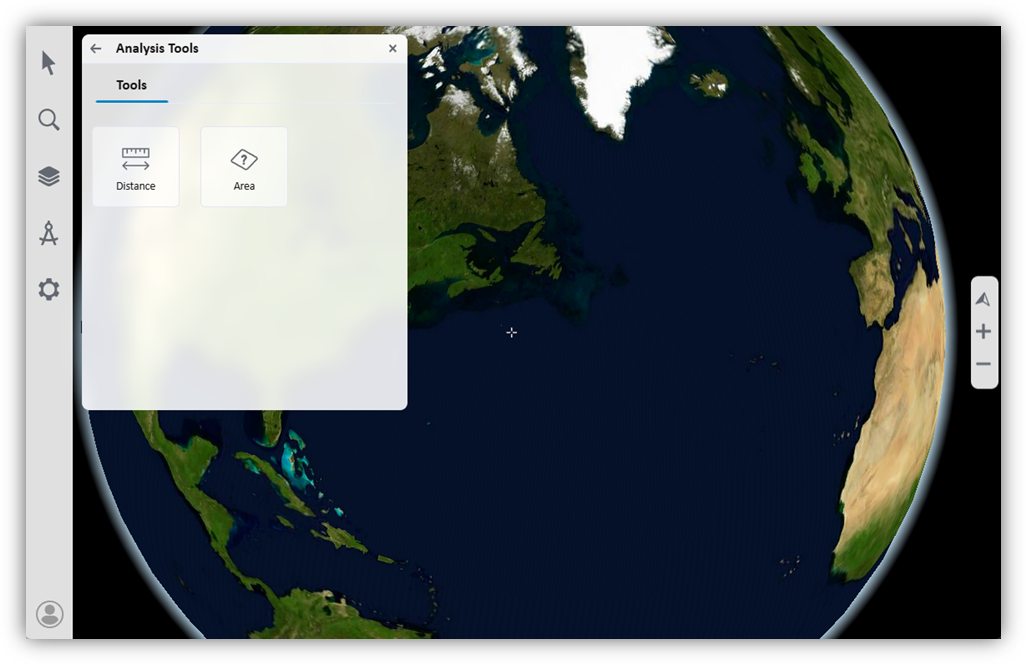
Visibility Dome
A powerful new analysis tool, Visibility Dome, has been added to TerraExplorer Fusion Plus. This tool allows users to analyze and visualize line-of-sight coverage from a specified viewpoint, with multiple visualization modes:
§ Dome – A 3D dome volume representing visible areas within a specified radius and angle.
§ Dome Base – A circular ground projection separating visible and non-visible zones.
§ Skyline – A silhouette of terrain and 3D obstructions defining the horizon from the viewpoint.
§ Skyline Base – Radial lines from the observer to the skyline, visualizing visibility limits.
A profile graph can be displayed to show the height of the dome or the Skyline ring. It includes tools for identifying waypoints, elevation extremes, and slope changes.
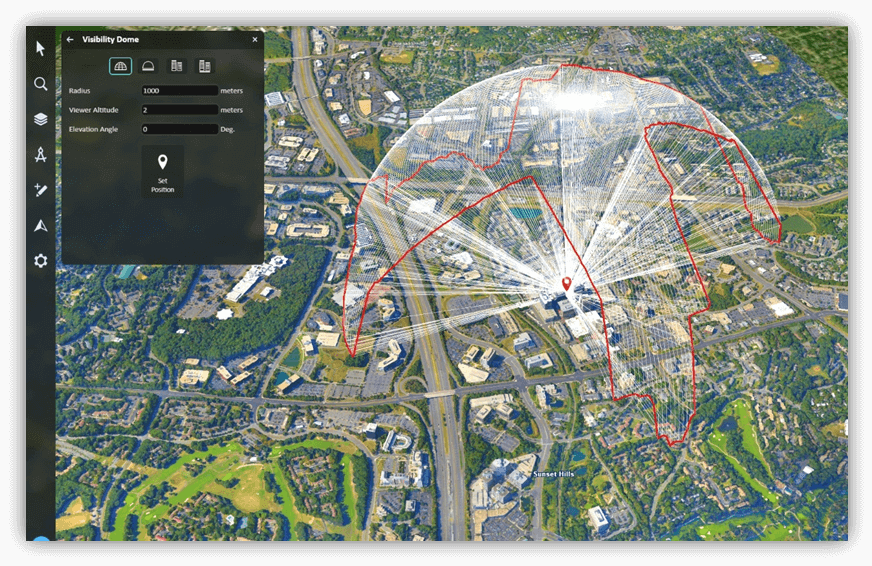
Enhanced Support for BIM Layers
TerraExplorer Fusion 8.5 introduces advanced capabilities for working with Building Information Modeling (BIM) layers, enabling users to query and edit individual features within a BIM dataset. This enhancement allows for more dynamic interaction with complex 3D building models, including retrieving attribute data, updating properties, and integrating BIM elements into broader geospatial workflows.
Improved Layer Loading from SGS
TerraExplorer Fusion users can now search for layers more efficiently when loading content from SkylineGlobe Server’s spatial catalog. By clicking Search on Map, users can select a specific geographic region to limit the search area. The Layers list is then filtered based on the selected region and any additional criteria, making it easier to locate relevant data.
GUI Improvements
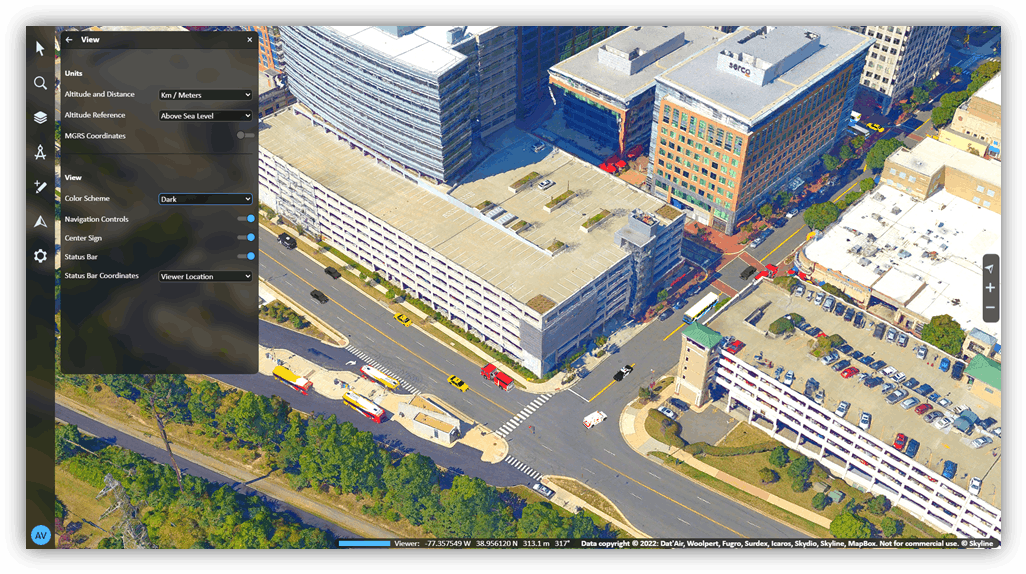
§ New display options:
§ Bright – A light interface with semi-transparentwindows, similar to previous versions but updated for clarity and depth.
§ Dark – A dark-themed interface optimized for low-light environments, with high-contrast text and inverted background colors. Dark mode is applied dynamically via a new UI setting and is supported across integrated tools.
§ Resizable Side Panel: Users can now manually resize the side toolbar panel to better fit their screen or workflow.
Gaussian Splatting Model Support
TerraExplorer Fusion 8.5 introduces initial support for Gaussian Splatting models, enabling users to visualize this emerging 3D representation technique within their projects. This feature allows integration of highly detailed point-based models for improved realism and flexibility in rendering.
Current Limitations
§ Performance and capabilities are still limited in this version.
§ Not all analysis tools are compatible with Gaussian Splatting models. For example, Shadow and Viewshed analysis are currently not supported.
These limitations will be addressed in future releases, with planned improvements to performance, broader tool compatibility, and enhanced visualization options.
Performance Improvements
This release focuses on optimizing speed and responsiveness to deliver a smoother user experience. Key improvements include faster application startup and enhanced project loading efficiency.
§ Improved application loading time for faster startup.
§ Improved loading time of projects with a high number of point cloud layers.
§ Resolved project load issues with large Project Trees.
§ Accelerate feature layer loading process
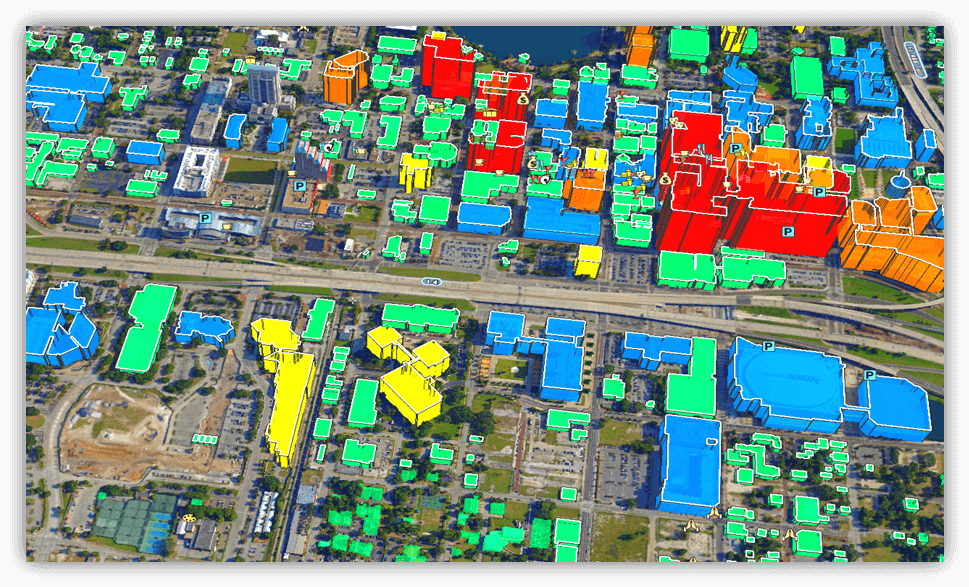
TerraExplorer Fusion Comparison Table
Custom tools implemented using the TerraExplorer Desktop API, or using the following TerraExplorer Fusion API methods, are supported only when TerraExplorer Fusion is running under the Plus or Viewer license:
§ analysis.addAnalysisTool({ id, name, title, icon, action })
§ navigate.addNavigateTool({ id, name, title, icon, action })
See "Using TerraExplorer API" and "Using TerraExplorer Fusion API" in this chapter for information.
|
|
Lite |
Viewer |
Plus |
|
View and Navigate |
|||
|
Fly to locations and objects or navigate freely |
✓ |
✓ |
✓ |
|
View objects, layers (raster, 3D, point cloud, feature) & features |
✓ |
✓ |
✓ |
|
View labels, 2D/3D objects, and dynamic objects |
✓ |
✓ |
✓ |
|
View water and particle effects |
✓ |
✓ |
✓ |
|
Play presentations |
✓ |
✓ |
✓ |
|
Underground mode and collision detection mode |
|
✓ |
✓ |
|
2D and 3D render modes for display of terrain in 3D Window |
|
✓ |
✓ |
|
Multiple coordinate systems |
✓ |
✓ |
✓ |
|
Environmental controls - toggle sun, clouds, & shadow, & set fog intensity |
|
✓ |
✓ |
|
Analysis |
|||
|
Information query |
✓ |
✓ |
✓ |
|
Distance and area measurement |
✓ |
✓ |
✓ |
|
Volume analysis |
|
✓ |
✓ |
|
Contour and slope maps |
|
✓ |
✓ |
|
Viewshed |
|
✓ |
✓ |
|
Elevation profile |
|
✓ |
✓ |
|
Layer swipe comparison |
|
✓ |
✓ |
|
Viewshed query |
|
✓ |
|
|
Photo inspector |
|
✓ |
|
|
Cross section and clip box |
|
✓ |
|
|
Clear path |
|
✓ |
|
|
Mark high and low areas |
|
✓ |
|
|
Visibility dome |
|
|
✓ |
|
Data Layers |
|||
|
Load imagery and elevation layers |
|
✓ |
|
|
Load 3D layers (3DML, o3DML) and BIM |
|
✓ |
|
|
Load feature layers |
|
✓ |
|
|
Load point cloud layers |
|
✓ |
|
|
Spatial and attribute queries (feature layers) |
|
✓ |
✓ |
|
Add and Update features (attributes and geometry) |
|
✓ |
|
|
Add and Share Content |
|||
|
Publish added layers or entire project to SkylineGlobe Server |
|
✓ |
|
|
Drawing tools – draw text/icon labels, polylines, polygons & freehand |
|
✓ |
|
Minimum System Requirements
Desktop
§ Supported Browsers: Google Chrome, Microsoft Edge, Mozilla Firefox, Apple Safari
§ System Memory: 8GB of RAM (16GB recommended for 4K render mode)
§ Video Card: 4GB (8GB recommended for 4K render mode)
§ Security: HTTPS protocol required. Ensure that TLS (commonly referred to as SSL) is enabled on SkylineGlobe Server to support secure access to TerraExplorer Fusion.
Mobile
§ Operating System: Android and iOS
§ Supported Browsers: Google Chrome, Apple Safari
§ System Memory: 8GB of RAM
Open TerraExplorer App and SGS Project
Opening the App
Certain TerraExplorer Fusion parameters can be defined from the URL query string, including the start location, start presentation, CSS file, language, and startup script/page.
To open the web app:
1. Type the TerraExplorer Fusion URL in your browser. If your URL specifies a project to open, e.g., https://cloud.skylineglobe.com/TEF/TE.html?project=https://cloud.skylineglobe.com/sg/demos/projects/Mexico_Beach_Emergency_Response, then TerraExplorer Fusion opens with this project loaded.
Your URL can also specify a start location, start presentation, CSS file, language, token, and startup script/page. E.g., https://cloud.skylineglobe.com/TEF/TE.html?project=https://cloud.skylineglobe.com/sg/demos/projects/Mexico_Beach_Emergency_Response&position=-77.03810042735431,35.10514241378217,443.3858826454782,311.0022613612068,-40.00015996803267,MyStartPos,14.
2. If your URL does not include a project parameter, e.g., https://cloud.skylineglobe.com/TEF/TE.html, a start page opens.
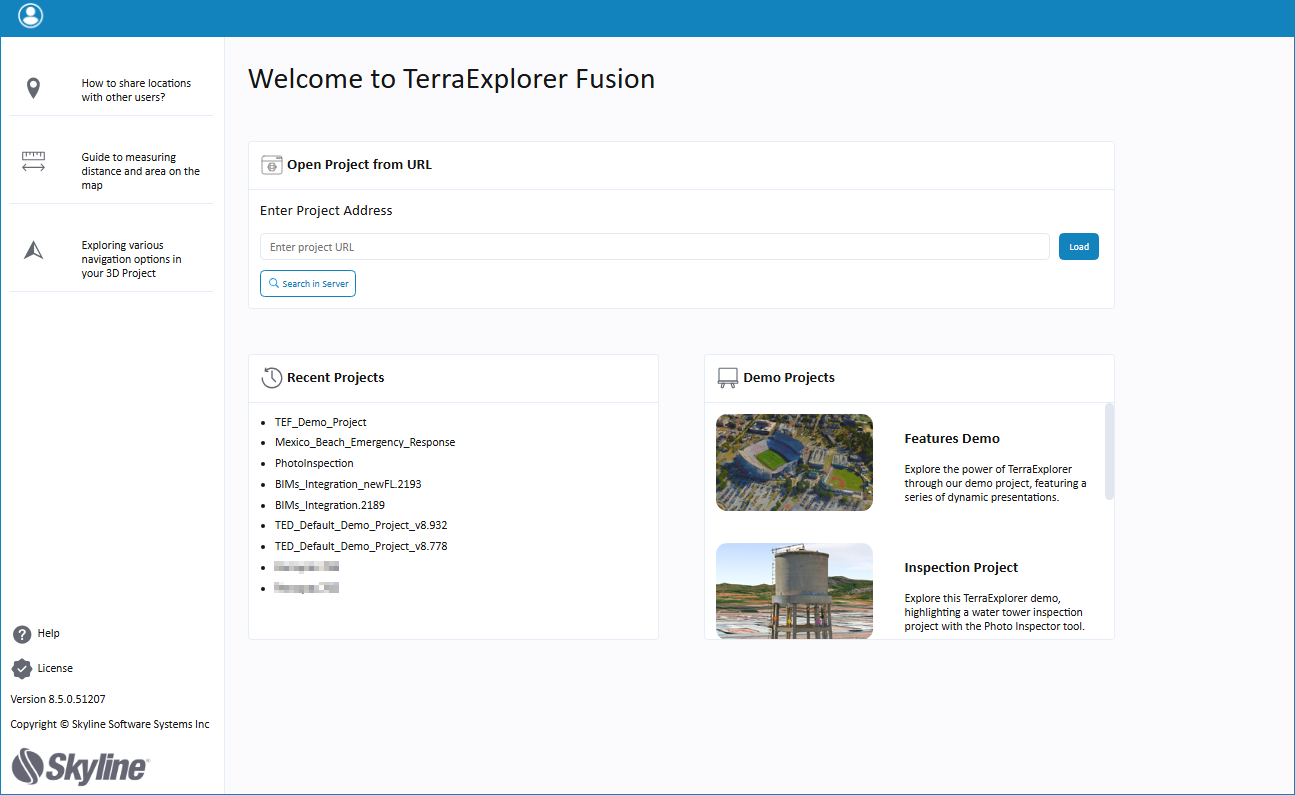
3. Enter the URL of the project you want to load, search for a project on the server, or click one of the demo projects.
Opening a Project
To open a new SGS project from the web app:
See “Log In to SGS” for information on logging in to your own SGS account.
1. On the side toolbar >  > Projects > Open Another Project > click Load.
2. In the SkylineGlobe Layers dialog box, search for the required project. If you aren't logged into a SkylineGlobe Server, you'll first need to log in. See “Log In to SGS” for information.
3. Select the required project and click Load.
To open a project in TerraExplorer Desktop:
§ On the side toolbar > > Projects tab> Open this project in the Desktop app.
What’s on the Side Toolbar
All of the TerraExplorer commands are available from the app's resizable side toolbar:
§ Query  – Opens the query tool.
§ Search  – Opens the search tool.
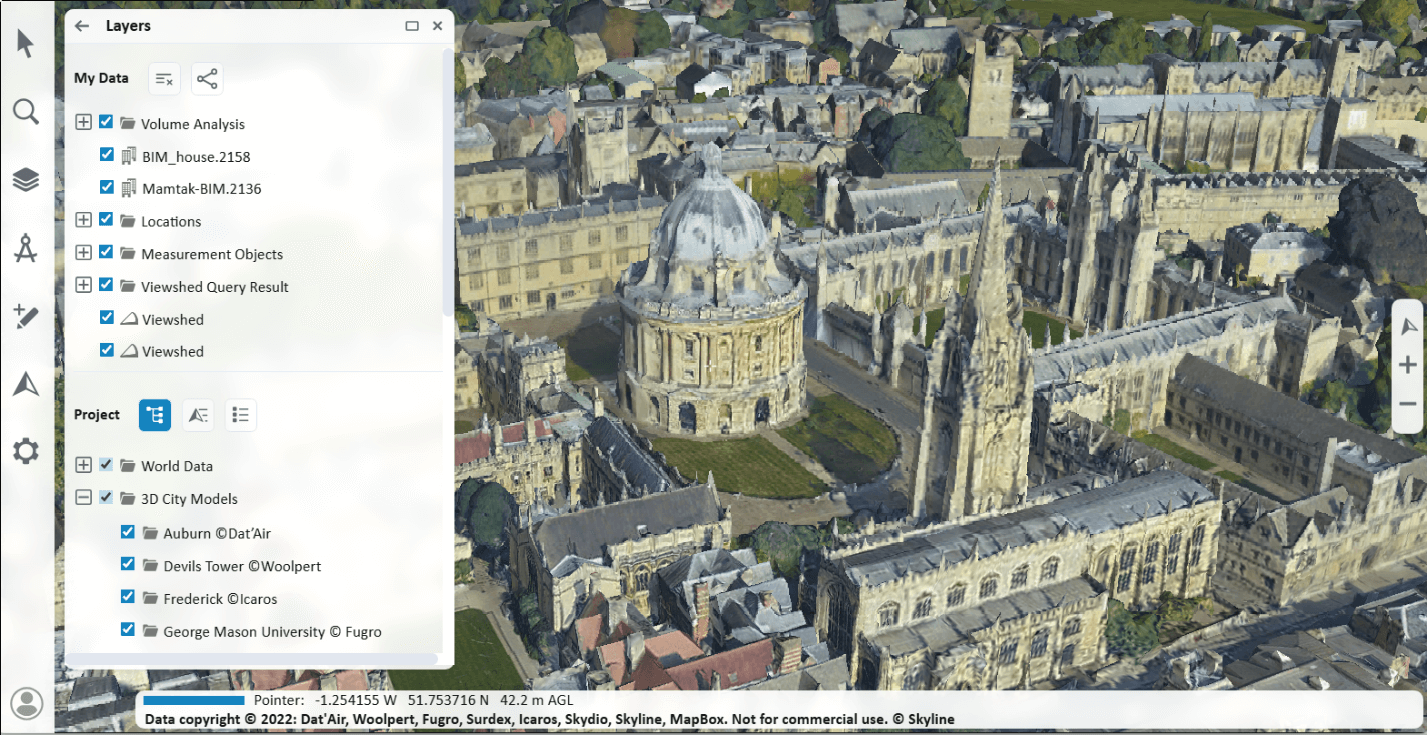
§ Layers  – Opens a panel with three tabs to manage the project's elements:
§ Project Tree – All project elements organized in a tree hierarchy.
§ Locations and Presentations – Flat list of locations and presentations.
§ Layers – Flat list of layers.
A "My Data" section is displayed at the top of the Layers panel with the data that you added to the project, i.e., created locations or measurement objects.
§ Analysis  – Opens a panel with three tabs:
§ Tools – Distance, Area, Volume, Elevation Profile, Viewshed, Swipe Comparison. In TerraExplorer Fusion Plus additional tools are available: Inspector, Clear Path, High/Low Highlight, and Cross Section.
§ Environment – Toggle light, shadow, and clouds on/off. Also adjust time and fog intensity
§ Maps – Show contour and slope maps.
§ Add Content  – Load layers from SkylineGlobe Server, add drawing objects, and publish a project to SGS (Only available in TerraExplorer Fusion Plus).
§ Navigate  – Opens a panel with two tabs:
§ Tools – Navigation commands.
§ Modes – Select render and navigation modes.
§ Settings – Opens a panel with the following:
§ Settings – Set graphics quality, post effects, units, screen overlay and more. You can also view basic information about the application and access the error logger.
§ Projects – Load another project from SGS, or open the current one in TerraExplorer Desktop.
Log In to SGS
Logging in to SGS lets you access previously saved measurements and viewsheds, and favorite locations.
To log in/out :
1. Click the Log in link  .
.
2. Type your Server. The do either of the following:
§ Type your User Name and Password. If you want your login details to be automatically completed the next time you log in, select Remember me next time. Then click Log In.
§ Sign in using one of the available identity providers like Google or Facebook. This option is only available if identity provider authentication was integrated into your SGS. See "Integrating Identity Providers (IdP) in SGS" in the "Working with Users" chapter for information.
3. To log out, on the top of the sidebar, click your username link, and then click Log out.