Starting SkylineGlobe Server Manager and Logging In
The SkylineGlobe Server (SGS) Manager is a centralized web management and configuration tool for controlling and monitoring the services provided by SGS and your SkylineGlobe servers, configuring general SkylineGlobe Server settings and various elements of your TEF application, managing your users, and more. For more information, see "What is the SkylineGlobe Server Manager" in the "Basic Concepts" chapter. Note that SGS Manager can only be accessed by an administrator.
To start SkylineGlobe Server Manager:
1. Do either of the following:
§ Open a web browser and enter the following URL: https://<HostName> where <HostName> is the IP or name of the machine on which SkylineGlobe Server is installed.
Note: If the site is not secured, use http instead of https.
§ If working directly on the server computer, open a web browser and enter the following URL: http://localhost:5000 (or the port you configured if different).
The SkylineGlobe Server Manager Login page is displayed.
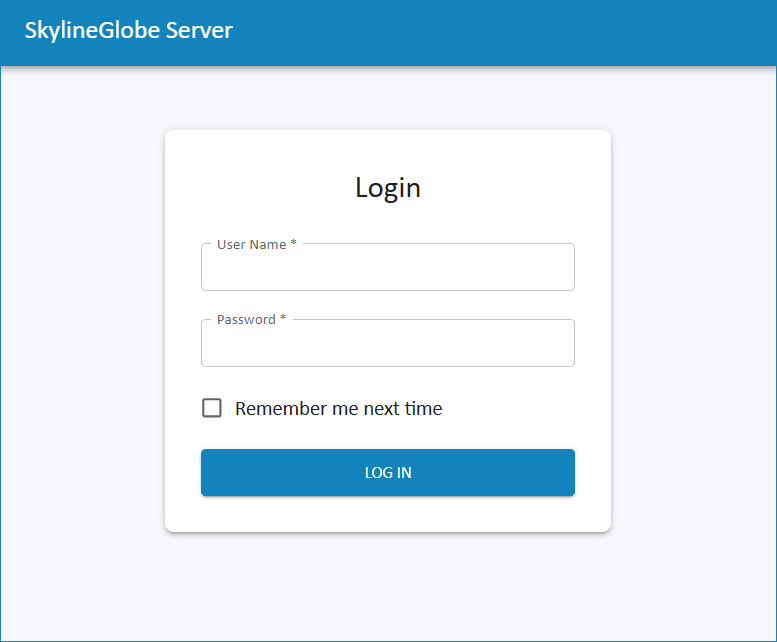
Login Page
2. Enter your user name and password in the respective fields.
The default user name and password after deployment are admin and admin (lower-case). The Change default administrator password page is displayed.
3. Enter a new password for the admin user. The Overview page is displayed.
Note: Additional users can be added from the Users page. See "Adding Users and Setting User Properties" in the "Managing Users" chapter for information.
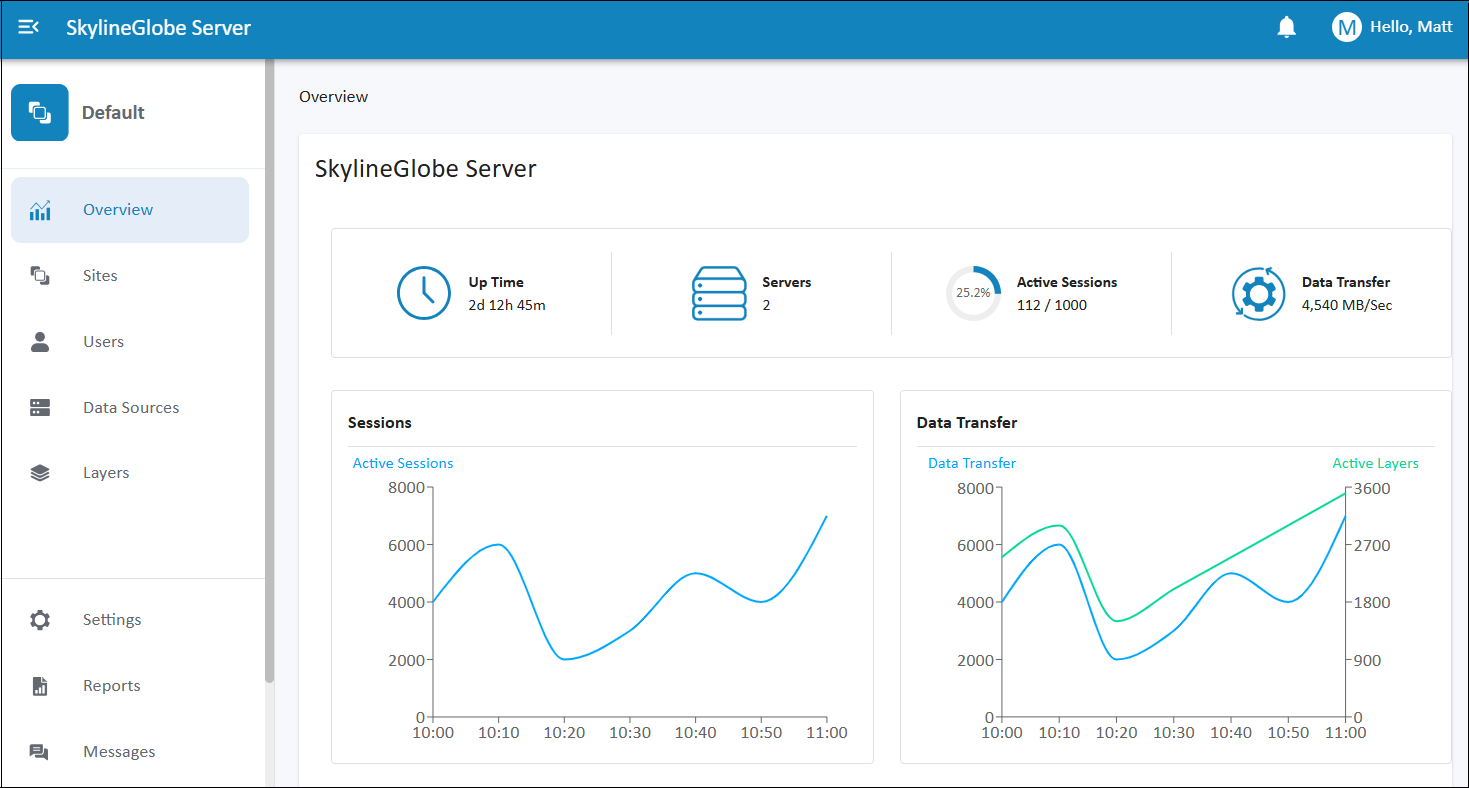
Overview Page
Logging In
To log in, do either of the following on the Login page:
§ Type your User Name and Password. If you want your login details to be automatically completed the next time you log in, select Remember me next time. Then click Log in.
§ Sign in using one of the available identity providers like Google or Facebook. This option is only available if identity provider authentication was integrated into your SGS. See "Integrating Identity Providers (IdP) in SGS" in the "Working with Users" chapter for information.
The Overview page is displayed. See "Overview Page" in this chapter for more information.
Logging Out
To log out:
§ At the top-right of any Manager page, click the Log out link.