SkylineCloud License Service
SkylineCloud License Service provides centralized management of Skyline software licenses through Skyline’s secure cloud infrastructure. Licenses are organized into packages, each containing one or more Skyline products that share the same licensing mechanism and expiration date. Depending on your subscription, you may have more than one package associated with your account, each with a different licensing mechanism or expiration date.
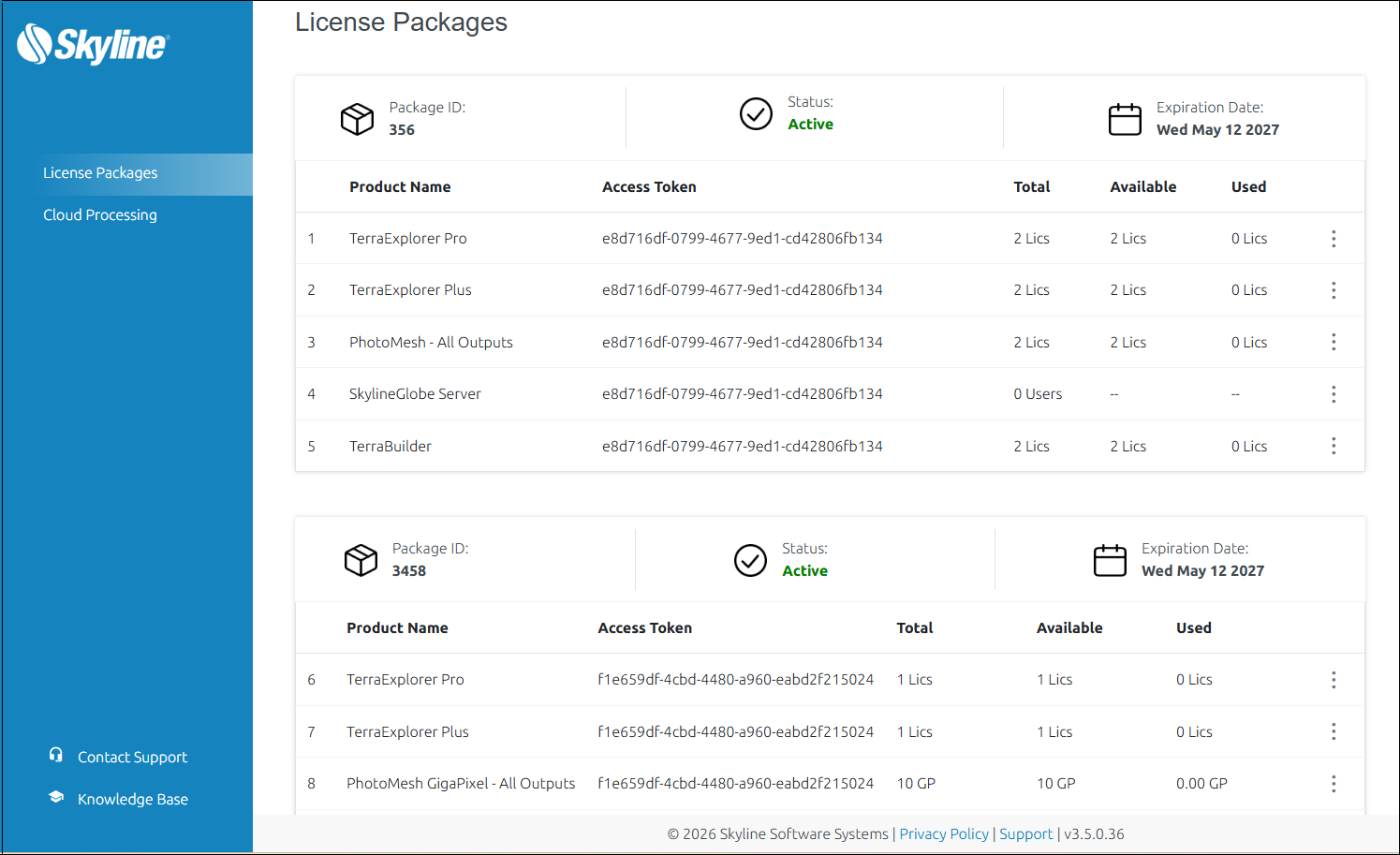
SkylineCloud License Service is fully hosted and managed by Skyline and is designed to maintain at least 99.0% availability under normal operating conditions.
The following licensing mechanisms are available:
§ Workstation-Dependent License (Based on user's machine-dependent code)
§ Local Hardware Protection (USB Key)
Note: The HASP key and HASP floating license options are no longer supported.
Floating License
Floating licenses provide access to a shared pool of licenses through Skyline’s secure cloud infrastructure. When you launch a Skyline application, it connects to the SkylineCloud License Service, checks whether a license is available. If a license is available, access is granted. When you close the application, the license is released and becomes available to other users.
Note: As an alternative to the cloud license service, Skyline also provides a self-hosted Skyline Floating License Server (SFLS) for installation on your own network.
Activating the Skyline Floating License on Each of the SkylineGlobe Servers
The floating license must be activated on each of the SGS machines that is sharing the license. Once activated, no further sign-in is required. SGS automatically connects to the SkylineCloud License Service when it starts.
When you purchase a floating license subscription, you receive a confirmation email containing your license token and package expiration date. This token is needed to activate your license.
Note: When SkylineGlobe Server is running in a server cluster, all servers in the cluster share a single license, i.e., only a single license needs to be requested from the license server.
To activate your Skyline Floating License on a SkylineGlobe Server machine:
1. Close any open Skyline applications.
2. For Windows deployment, in your Windows Server Manager, toggle the setting for IE Enhanced Security Configuration (for both administrators and users) to OFF.
3. Place the license file in the correct location:
§ Windows: root of the server directory
§ Docker/Kubernetes: config subdirectory within the server directory
4. Set the LicenseServerURL parameter in the following format: https://cloud.skylineglobe.com/sws/[LICENSE_TOKEN]. Replace [LICENSE_TOKEN] in the URL with the token from your subscription email or from your Skyline account page (https://cloud.skylineglobe.com/store/account):
§ Windows Deployment – in appsettings.json, under the "ServerConfig": section, add the following:
"LicenseServerURL": "https://cloud.skylineglobe.com/sws/[LICENSE_TOKEN]"
§ Docker Compose Deployment – In docker-compose.yaml file, under the environment: section, add the following:
SGS__ServerConfig__LicenseServerURL: ""
§ Kubernetes Deployment – In deployment.yaml, under the env: section, add the following:
- name: SGS__ServerConfig__LicenseServerURL
value: ""
License Checkout
Floating licenses can also be checked out for temporary offline use. An Internet connection is required to check out or manually return the license, but is not required while using the checked-out license. During checkout, the license is temporarily bound to a specific machine. License checkout availability and maximum duration are defined by your subscription. A checked-out license can be returned to the pool at any time via the License Manager. Otherwise, it is automatically returned when the checkout period expires.
To check out a license:
1. Close the application for which you want to check out a license.
2. Open the License Manager from the application's installation folder (e.g., C:\Program Files\Skyline\<ProductName>\LicenseManager.exe) or from the Windows Start menu.
3. Under the section for the desired application click Check Out. The Protection Type field refreshes and reads Floating (Checked Out).
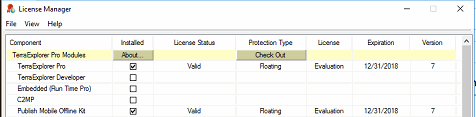
To check a license back in:
1. Close the application for which you want to check a license back in.
2. Open the License Manager and click Check In.
Workstation-Dependent License
A workstation-dependent license is locked to one or more specific machines, identified by their machine code. Machine codes are registered with Skyline either at the time the subscription is created or afterward, depending on your organization's setup. The application will run only on machines whose codes have been registered with your subscription.
When SkylineGlobe Server is running in a server cluster, the server on whose machine the license is locked can share its license with all the other servers in the cluster. If for any reason, however, this machine is disconnected from the cluster, the license will stop running on the other servers.
Using Your Workstation-Dependent License
To use your workstation-dependent license:
1. Download and install the Skyline application from the link in your subscription confirmation email or from your Skyline account page (https://cloud.skylineglobe.com/store/account).
2. Once installed, the application is ready to use on any machine whose machine code has been registered. No additional license activation is required.
Registering Additional Machines
If your subscription includes multiple machines and you want to register additional computers or modify the existing list, do the following.
1. Log in to your Skyline account page (https://cloud.skylineglobe.com/store/account) .
2. Next to the relevant package and product, click the ⋮ menu and select Machine Codes.
3. Follow the registration instructions in the panel to generate a machine code for each computer you want to add.
4. Submit the codes directly from your account page (if self-registration is enabled for your account) or email them to [email protected].
Local Hardware Protection (USB Key)
A USB key is a physical hardware key delivered with the Skyline software package that plugs into the USB port of the computer, to allow the operation of the product. To use the product, plug the USB key into an available USB port on the computer before starting the Skyline application.