Environment
From the Environment tab, you can set the appearance of the atmosphere in the 3D Window:
§ Horizon distance, fog starting distance
§ Sky and fog color
§ Sky and cloud textures
§ Water effect.
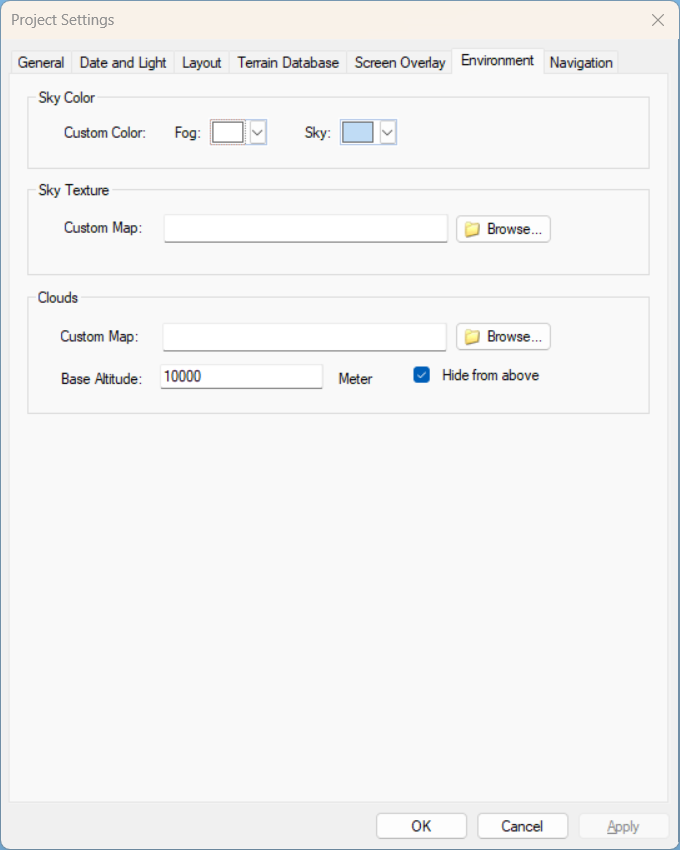
Project Settings - Environment Tab
|
Parameter |
Activity |
|
Sky Color |
|
|
Fog |
Click this arrow and select the required fog color from the dropdown list of fill colors or click Other, and select the required color from the Colors dialog. See "Colors Dialog" in this chapter for information. The actual fog color is a gradient of colors from the Fog color at the horizon to the Sky color at the middle of the sky. |
|
Sky |
Click this arrow and select the required sky color from the dropdown list of fill colors or click Other, and select the required color from the Colors dialog. See "Colors Dialog" in this chapter for information. |
|
Sky Texture |
|
|
Sky texture |
If you want a sky texture to be displayed, select the check box, and select one of the texture options, or select Custom, and browse to the required texture file. |
|
Clouds |
|
|
Custom map |
If you want a cloud cover to be displayed, select the check box, and select the Cloud cover option, or select Custom, and browse to the required Cloud map file. |
|
Base altitude |
Enter a number between 10000 and 20000 as a base altitude for the cloud cover. |
Colors dialog
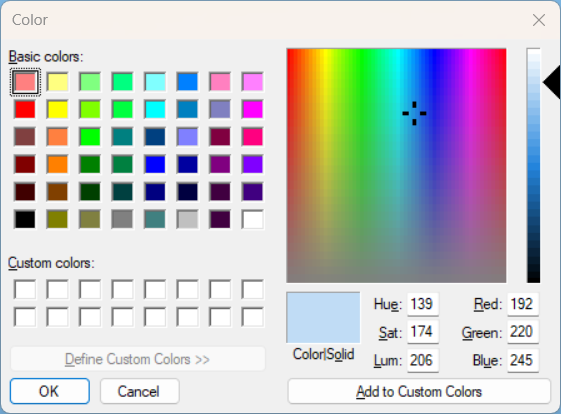
Colors Dialog
To select a color:
1. Use one of the following methods:
§ In the Standard tab, click one of the displayed Colors.
§ In the Custom tab, create Custom colors using the color matrix and luminosity slider or by typing exact parameters in the value-boxes. Click OK.
§ Click Select, drag the eye dropper to any area on the screen with the required color and click.
2. Click OK.