Loading projects and layers from SkylineGlobe Server
Loading a project from SkylineGlobe Server
To load an existing project from SkylineGlobe Server:
1. From the File menu  , point to Open and select Open Project from SkylineGlobe.
2. If you aren’t already logged in to a SkylineGlobe Server, the Login to SkylineGlobe Server dialog is first displayed. Click Log in to log in to a server. See "Logging In to a SkylineGlobe Server" in this chapter for more information.
3. The SkylineGlobe Layer dialog is displayed showing all projects on your SkylineGlobe server. Click any column header to sort by that column (click again to reverse the order).
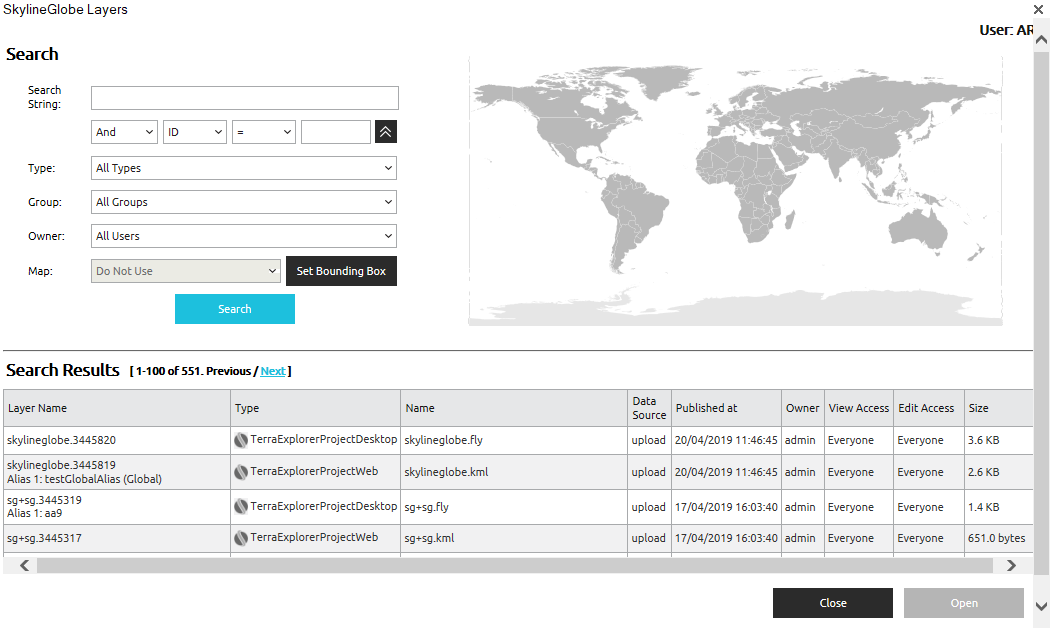
SkylineGlobe Layers Dialog
4. Search for the required project. See "Searching for SkylineGlobe Layers" in this chapter.
5. Select the required project and click Open.
Loading SkylineGlobe layers
To add a layer from a SkylineGlobe server:
1. On the Layers tab, in the SGS group, click Load SGS Layers. The SkylineGlobe Layers dialog is displayed, showing all layer types. Click any column header to sort by that column (click again to reverse the order).
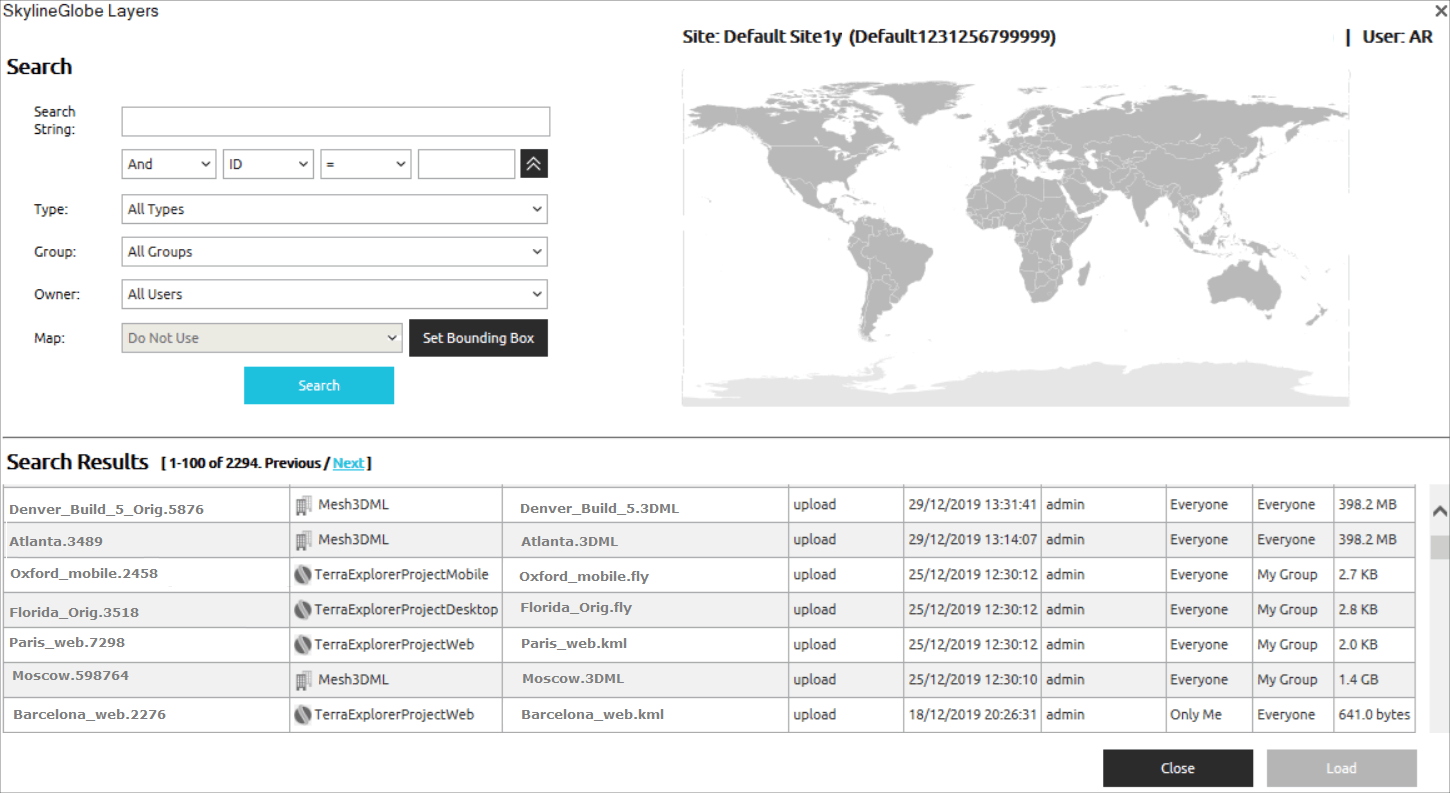
SkylineGlobe Layers Dialog
2. If you aren’t already logged in to a SkylineGlobe Server, the Login to SkylineGlobe Server dialog is first displayed. Click Log in to log in to a server. See "Logging In to a SkylineGlobe Server" in this chapter for more information. After logging in, the SkylineGlobe Layers dialog is displayed showing all layer types.
3. Search for the required layer. See "Searching for SkylineGlobe Layers" in the "Working with SkylineGlobe Server" chapter.
4. Select the layer you want to load, and click Load Layer. Use CTRL-click or SHIFT-click to multi-select layers. If a layer was assigned an alias in the SkylineGlobe Layers dialog, you also can right-click and select Load by Alias. Aliases are a mechanism used in SkylineGlobe Server which enable users to easily access updates to a layer – when the alias is transferred to an updated version of the layer. When an update to a layer is available, if layer was "loaded by alias", all the user needs to do is refresh the layer. See the SkylineGlobe Server User Guide for more information.
Note: When loading a feature layer, the Select Layer dialog opens with the selected layer(s) listed in the Select a Layer section. See "Select layer dialog" in the "Feature Layers" chapter for information.