Publishing a project to SkylineGlobe Server
The Publish to SkylineGlobe Server process publishes the entire project and all its layers, resources, and styling to SkylineGlobe Server, Skyline’s private cloud solution. Through a single publishing operation, the project is made available to desktop, mobile and TerraExplorer Fusion clients, as well as standard geospatial clients such as WFS/WFS-T/WMS/WMTS/3D Tiles (Cesium). The SkylineGlobe Server provides a comprehensive set of web services for publishing, storing, managing and streaming your 3D spatial data.
When a project is published to SkylineGlobe Server, internal service and resource references are stored relative to the server base URL. This allows the project to continue functioning if the SGS public URL is changed or the server is relocated, without republishing the project.
If you publish a project that was opened from SkylineGlobe Server, you can either publish it as a new FLY project or update the existing project on the server. If you choose to update the existing project, it will be published with the same URL but as a separate version. This ensures that users automatically get the latest version of the project. In SGS Manager, you can select which version of a FLY layer should be served to TerraExplorer clients when loading the layer. By default, the latest version is served. See "Selecting a Layer Version" in the SGS User Manual for more information.
How to publish a project to SGS
To publish a project to SkylineGlobe Server:
1. On the Home tab, in the Project group, click Publish to SG.
2. If you aren’t already logged in to a SkylineGlobe Server, the Login to SkylineGlobe Server dialog is first displayed to enable you to log in. See "Logging In to a SkylineGlobe Server" in the "Working with SkylineGlobe Server" chapter for information. After logging in, the Publish to SkylineGlobe dialog is displayed.
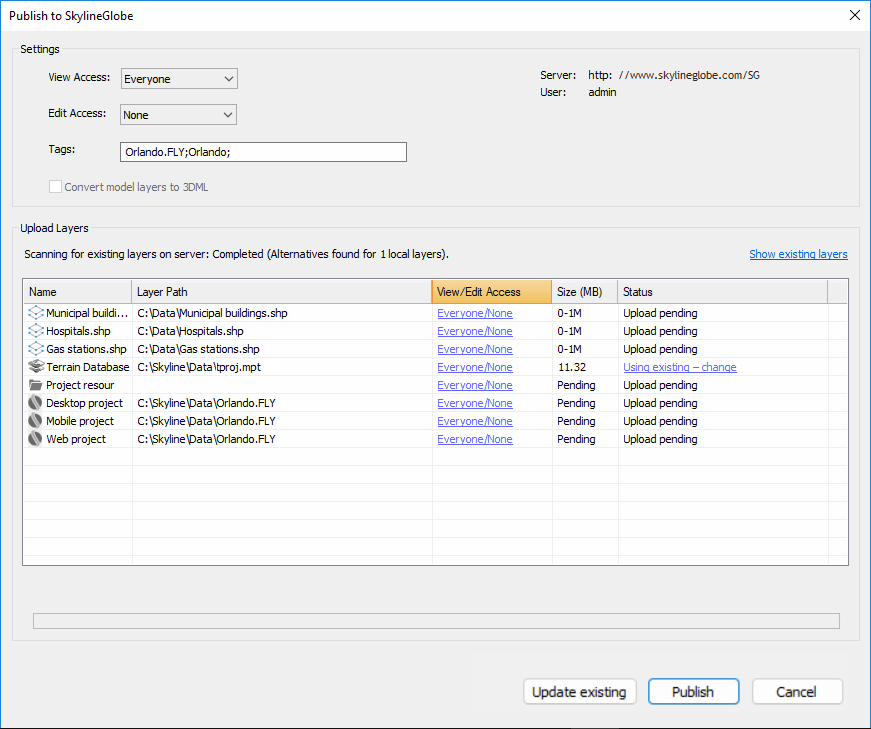
Publish to SkylineGlobe Dialog
3. Set the View Access for the project:
§ Only me – Only for user publishing the project
§ My group – Everyone in the user’s group
§ Everyone – Viewable by everyone
Note: Users with View access can view and load the project from the Layers page.
4. Set the Edit Access for the project:
§ None – No Edit access is granted even to the user publishing the project
§ Only me – Only for user publishing the project
§ My group – Everyone in the user’s group
§ Everyone – Editable by everyone
Note: Users with Edit access can also load, edit and save changes to the project from TerraExplorer and the browser.
5. If you want to set unique permissions for specific project layers, click the View / Edit Access link for the required layer, and in the Set Permissions dialog, select the required permissions for that layer.
6. Set Tags (Key words or terms associated with the project file) for advanced searches. The default value for this field is the project name. If adding multiple tags, they should be semicolon delimited.
7. If you want to set a viewer token that can be used to grant view access to the project, generate a viewer access token in SkylineGlobe Server Manager, and then enter the token here in the Viewer Token field. Appending the token to the project URL (see step 11), e.g., http://skylineglobe.com/SG/projects/Default_Local_Terrain.35199954?token=0cad22c2h96e4f8fbb91c8a7a9gb7387 enables a user to directly access SGS project layers that are non-public, without logging in to SGS. See the Access Token property in the "Adding Users and Setting User Properties" chapter of the SkylineGlobe Server User Guide for more information.
8. If you want to create a unified, stream optimized 3D Mesh Layer (3DML) database from a point feature layer with individually referenced 3D model files, select the Convert model layers to 3DML check box. To retain the individual models, clear the Convert model layers to 3DML check box. Conversion to 3DML will improve performance and provide better support for web and mobile devices, especially for large layers that reference many different models. See "Streaming 3D Models Using Feature Layers" in the "Feature Layers" chapter.
9. In the Upload Layers table, click any column header to sort by that column (click again to reverse the order).
10. If the project you are currently publishing was opened from SkylineGlobe Server, and you want to update the existing project on the server, click Update existing. When a project is loaded from SGS, the most updated version is served, unless a different version was selected from SGS Manager. See the SGS User Guide for more information. If you want to create a new FLY project, click Publish.
Note: You can only update a project that you are the owner of, e.g., you published the original project to SGS.
11. Before uploading a layer, TerraExplorer compares its file size, checksum, and metadata to all files currently on the server, to determine if a duplicate of this layer was already published to the server. If a duplicate is found, the existing copy can be used instead of expending resources on re-publishing this layer. TerraExplorer’s default action depends on how close a match is found: When a perfect match is found, the default action is to use the existing layer; when no match or only a similar (but not perfect) match is found, the default action is to upload the new layer. If you want to perform the default action, click Publish.
12. If you want to view similar layers on the server for all project layers, click the Show existing layers link. The Publish to SkylineGlobe Server – Layer Duplication dialog is displayed, showing all the layers for which there is already a close or identical copy on the SkylineGlobe Server. If you want to view similar layers on the server for a specific layer for which a similar or perfect match was found, click the link in the layer’s Status field. The Publish to SkylineGlobe Server – Layer Duplication dialog is displayed, showing all duplicates on the server for the specific layer. Do the following:
a. If you want to republish layer(s) for which matches were found instead of using the existing layers on the server, clear the Use Existing checkbox for each of the layers, and click Apply. Click Clear All to clear all layer checkboxes.
b. If you want to use existing layers on the server for layers for which a similar but not exact match was found, select their check boxes, and click Apply. Click Select All to select all layer checkboxes.
c. Click Publish.
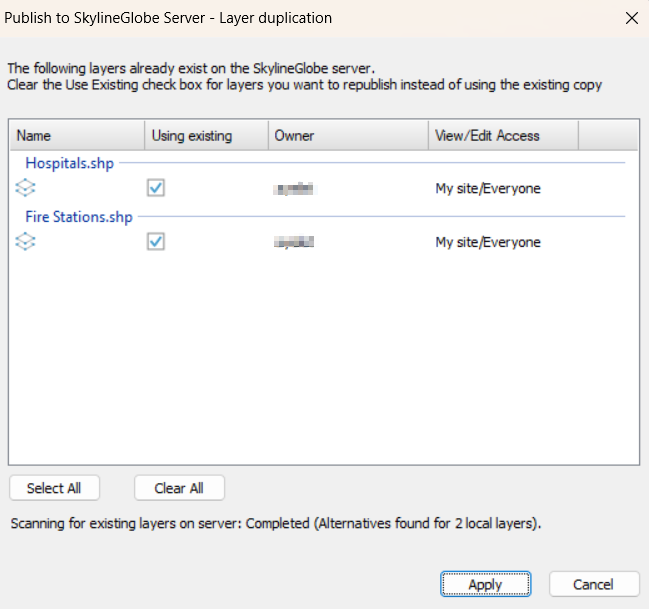
Publish Project to SkylineGlobe Server – Layer Duplication Dialog
13. After the publishing process is complete, a dialog is displayed with the project URLs for both Desktop and TerraExplorer Fusion.
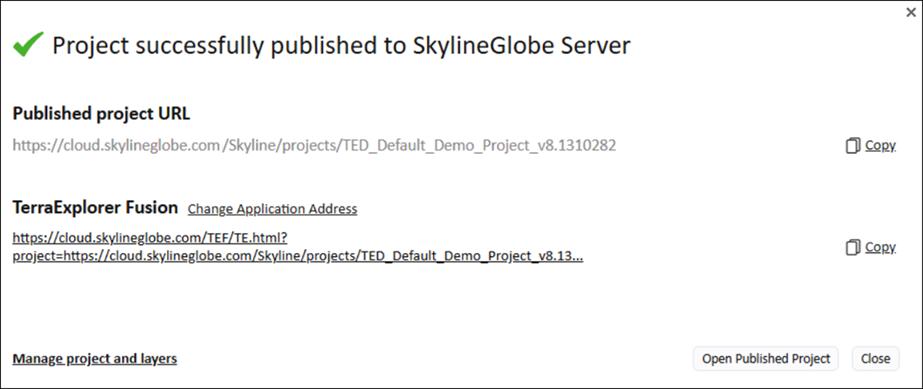
Open Published Project Dialog
14. To open the project in TerraExplorer Fusion from a different SkylineGlobe Server than the one you were logged into when publishing the project, click Change Application Address. Then enter the Server details. Click Restore  to restore the server to the one the project was published to.
15. To copy a URL, click Copy next to the required URL. If you want to open the project in TerraExplorer Fusion, click the Fusion link. If you want to open the published project in the open Desktop application, click Open Published Project.
16. Click Manage project and layers to open the SkylineGlobe Layers dialog to manage your project and layers. The published project FLY is listed in the dialog, along with all project layers that meet either of the following criteria:
§ Local layers: Layers stored on your local device.
§ Owned layers: Layers that you originally published to SkylineGlobe Server (SGS) and that were loaded into this project from the SGS you are currently connected to.
See "Managing Your Own SkylineGlobe Layers" in the "Working with SkylineGlobe Server" chapter for more information.