Cutting, copying, pasting, and moving objects
You can copy a single object or multiple objects in the 3D Window and paste them in another location. The new objects are added under the selected group in the Project Tree.
TerraExplorer Pro has a buffer for copied objects. Every time you perform a copy or cut function on objects in the 3D Window, the buffer is filled with the new set of objects. You can perform the paste function at any time until you close the project.
Using advanced clipboard mechanisms, you can generate any 2D or 3D object based on the geometry of objects in the clipboard (e.g., generate buildings according to properties of selected polygons). You can also use the geometry of objects in the clipboard as the input for advanced spatial queries or for Duplicate object operations.
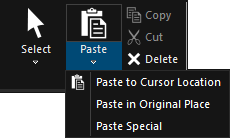
Home Tab Edit Group
Copying and pasting objects
To copy and paste objects:
1. On the Home tab, in the Edit group, toggle on Select.
2. To copy: In the 3D Window, place the cursor over the required object, and type CTRL + C.
3. To paste:
§ To cursor location – Type CTRL + V. A copy of the object is pasted in the current location of the cursor, and the cursor mode changes to the last positioning mode (i.e., XY, Z or XYZ Magnet) that you used, so you can drag the pasted object to the required location. Click the left mouse button to set the pasted object in its place. See "Changing the Position of an Object" in the "Working with Objects" chapter for information.
§ In original place – On the Home tab, in the Edit group, click the arrow below Paste, and then click Paste in Original Place.
Note: You can also select the object, and use the ribbon commands on the Home or Objects tabs or the right-click menu to copy and paste.
4. If you want to generate a 2D or 3D object based on the geometry of the objects in the clipboard, do the following:
a. On the Home tab, in the Edit group, click the arrow below Paste, and then click Paste Special. The Paste Special dialog is displayed.
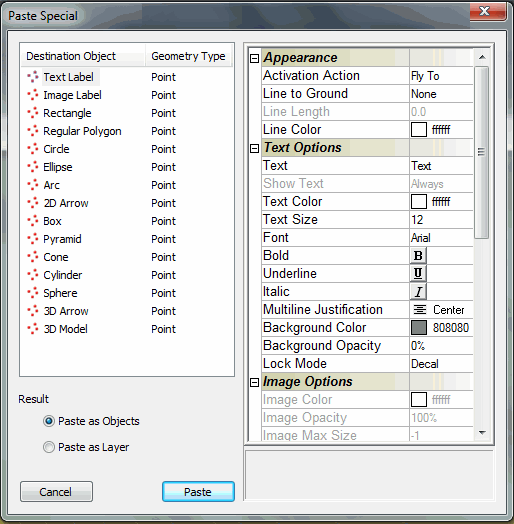
Paste Special Dialog
b. Select the Destination Object that you want to generate, and then modify its properties as required in the Property sheet.
c. Select whether to paste the object as an object or layer:
§ Paste as Objects – Create a group that contains an object for each copied object.
§ Paste as Layer – Create a new feature layer that contains a feature for each copied object.
d. Click Paste.
Cutting and deleting objects
You can cut or delete a single object or multiple objects.
Note: When you "cut" an object in the 3D Window, the object is stored in the copy/cut buffer until a new copy or cut command is performed, so you can still restore it by performing the paste function. When you "delete" an object, however, you cannot restore it.
To delete an object or objects, do either of the following:
§ In the 3D Window, select the object or objects you want to delete, and then on the Home tab, in the Edit group, click Delete.
or
§ In the Project Tree, select the object or objects you want to delete, and then right-click and select Delete from the shortcut menu.
To cut an object or objects:
§ In the 3D Window, select the object or objects you want to delete, and then on the Home tab, in the Edit group, click Cut.
or
§ In the 3D Window, select the object or objects you want to delete, and then right-click, and select Cut from the shortcut menu.
See "Selecting Objects for Editing" in this chapter for more information on selecting objects from the 3D Window or Project Tree.
Moving objects
You can select a single object or multiple objects in the 3D Window and move them to a new location. See "Selecting Objects for Editing" in this chapter for information.
Note: The Move function is most effective if you want to move an object to a close by location. If you need to move the object to a more distant location, it is easier to use the cut-paste commands.