Navigation
The navigation settings allow you to change the settings for navigating the camera on the 3D Window. See the "Navigating in the 3D World" chapter for more information on flying using the keyboard, joystick and navigation controls.
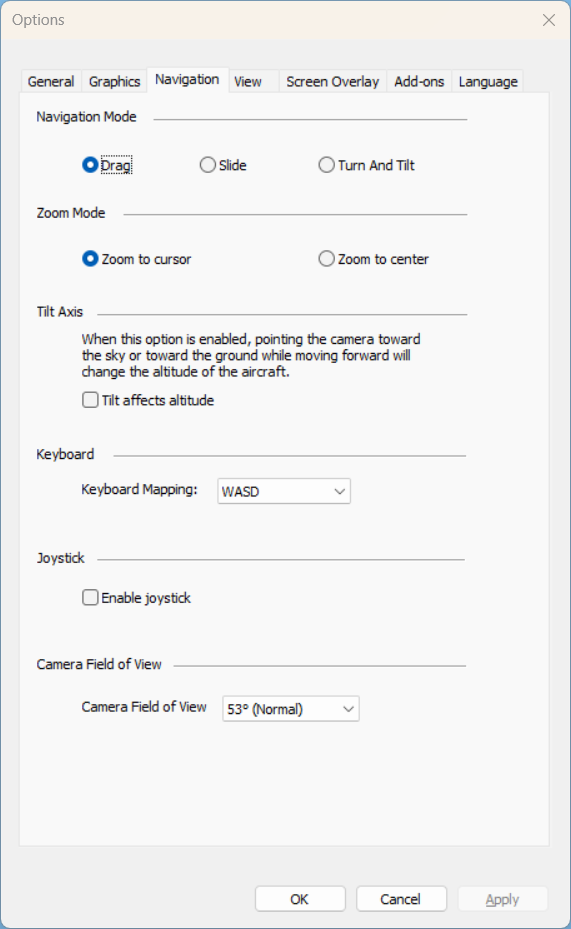
Options - Navigation Tab
|
Parameter |
Description |
|
Navigation Mode |
|
|
|
Select the navigation mode: § Drag § Slide § Turn and Tilt See "Navigating Using the Mouse" in the "Navigating in the 3D World" chapter for further information. |
|
|
Select the zoom mode when adjusting zoom using the mouse wheel: § Zoom to cursor – Zoom to mouse cursor location. § Zoom to center – Zoom to center of screen (regardless of location of cursor). |
|
Tilt Axis |
|
|
Tilt Affects Altitude |
When this option is enabled, flight direction follows the camera tilt. Looking up while moving forward increases altitude, and looking down decreases altitude. When disabled, camera tilt does not affect altitude. |
|
Keyboard |
|
|
Keyboard Mapping |
Select a keyboard mapping mode. Keyboard mapping determines which keys on the keyboard perform specific navigation actions. § Traditional Mapping – Legacy key layout. § WASD Mapping – Gaming-style layout (W/A/S/D for movement). See "Navigating Using the Keyboard" in the "Navigating in the 3D World" chapter for more information. |
|
Joystick |
|
|
Enable Joystick |
Enable use of external joystick for navigation. |
|
Camera Field of View |
|
|
Camera Field of View |
The field of view is the size of the camera’s viewing angle, or the zoom level of the camera. TerraExplorer Pro’s field of view ranges from 15 to 90 degrees, with 53 degrees set as the default. A wider field of view (larger angle) allows you to see more, with a decreased zoom level. A narrower field of view (smaller angle) allows you to see less, with an increased zoom level. In some cases, you also experience reduced performance of the TerraExplorer Pro application with a field of view less than 53 degrees. To set the camera’s field of view: § Select one of the available values. |