Coordinate system
A coordinate system is a reference system used to represent the locations of project data within a common coordinate framework. A coordinate system can be projected (X, Y), geographic (latitude-longitude), or geocentric (X, Y, Z). Each coordinate system is defined by a Well-Known Text (WKT) definition string, a simple structured, text-based format for spatial reference system information that is easy to store and share between systems (See http://portal.opengeospatial.org/files/?artifact_id=999 and https://en.wikipedia.org/wiki/Well-known_text_representation_of_coordinate_reference_systems). A coordinate system can optionally include a vertical datum that defines the origin for height values.
All project layers must be displayed in the terrain coordinate system. When you add a new layer to a project, TerraExplorer tries to read its coordinate system. If TerraExplorer is able to do so, it automatically reprojects the layer to the project’s coordinate system. If the layer does not include coordinate system information or TerraExplorer is unable to read this information, you can indicate the coordinate system of this source, as provided by the data supplier, in the Coordinate System dialog. TerraExplorer then converts the layer data to the project’s coordinate system. Although the source file retains its original coordinate system, it is placed on the terrain according to the reprojection parameters.
Coordinate system dialog
The Coordinate System dialog is a high-level dialog that allows you to select, view, and edit a coordinate system. You can also use this dialog to define new coordinate systems that are not already defined. This dialog is accessed in the following cases:
§ The coordinate system of a project’s base MPT is reprojected from the Project Settings, Terrain Database tab. See "Terrain Database" in the "Setting the Project" chapter for information.
§ The coordinate system of a feature or raster layer is changed from the layer’s property sheet (In the Projection Group, in the Coordinate System field, click Set.).
§ An imagery or elevation layer does not have coordinate information or TerraExplorer cannot read it from file - in this case, the Coordinate System dialog directly opens.
§ A navigation map’s coordinate system is changed from the Navigation Map Settings dialog. See "Navigation Map" in the "Navigating in the 3D World" chapter for further information.
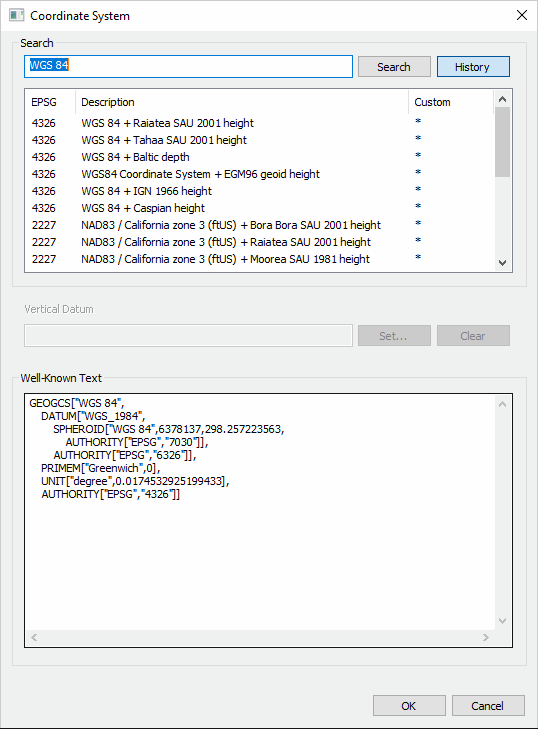
Coordinate System Dialog
To select a coordinate system:
1. Enter the coordinate system information using one of the following methods:
§ Click History and select one of the recently used coordinate systems. The last 20 coordinate systems used are saved in the History for future use.
§ In the Search field, type the EPSG code or a phrase from the Coordinate system Description, as indicated by the supplier, and click Search. Then select the required result from the search results displayed directly below.
§ In the Well Known Text section, type the WKT. The Well Known Text representation of spatial reference systems, regulated by the Open Geospatial Consortium (OGC), provides a standard textual representation for coordinate system information. You can edit an existing WKT. See "https://www.opengeospatial.org/standards/wkt-crs" for more information.
Note: A custom coordinate system is listed with all the other coordinate systems, with an asterisk in the Custom column.
2. If the coordinate system includes a vertical datum, click Set and select a vertical datum from the list of supported datums.
Note: If the WKT of your coordinate system references a particular grid shift file that was not bundled with the TerraExplorer installation, you can add the file by downloading it and placing it in the required directory. See "Adding Grid Shift Files" in this chapter for information.
3. Click OK.
To delete coordinate systems from History:
1. Click History, and then in the list of coordinate systems, right-click the required custom system, and select one of the following:
§ Delete the selected item – To delete only the selected item.
§ Delete all the history items – To clear all coordinate systems from the History.
2. Click OK.
Adding Grid Shift (TIFF, GSB, and GTX) files
TerraExplorer uses cloud-optimized GeoTIFF grid shift files to shift and transform between some coordinate systems that have different datums. For backward compatibility, GSB and GTX grid shift files are also currently supported. When the Well-Known Text (WKT) of one of the coordinate systems in your project references a particular grid shift file, TerraExplorer first checks your local computer for the file in the following locations and uses it:
§ %AppData%\Skyline (e.g., C:\Users\[user name]\AppData\Roaming\Skyline\gdal_proj_data)
§ Proj subdirectory of installation directory (e.g., C:\Program Files\TerraExplorer\proj)
§ %ProgramData%\Skyline\gdal_proj_data (e.g., C:\ProgramData\Skyline\gdal_proj_data)
If the file was not found on your computer, TerraExplorer dynamically downloads the necessary grid shift file from your SkylineGlobe Server. If you are not connected to a server, the default is https://cloud.skylineglobe.com. A different URL can be set in the proj.ini file found in the proj subdirectory of the installation directory. SkylineGlobe Server v8.0 and GDAL v3's coordinate system reprojection library are required for dynamic download of grid shift files. See "Use reproject by GDAL starting from version 3" in the "Using TerraExplorer Options" chapter for more information.
Preloading Grid Shift Files for Offline Use
Grid shift files can also be preloaded for offline use. After checking the directories listed above to verify that they do not, in fact, include the necessary grid file, follow the steps described below.
To preload a grid shift file, find and install the missing file:
1. Log out from SGS. Generally, when one of the coordinate systems in your project references a particular grid shift file that was not found on your computer, a notification will display in the coordinate system dialog or in the Error/Message Log with a link to a page with the required grid shift file. The grid shift file on this page is packaged as a TEZ, a TerraExplorer zip file that enables the grid shift file to be installed without manually copying the file into a specific folder. In this case, download the TEZ and then simply double-click the file to install. See "Package Grid Shift Files" in the "Working with Tools" chapter for more information. TerraExplorer will save the grid shift file to %ProgramData%\Skyline\gdal_proj_data (e.g., C:\ProgramData\Skyline\gdal_proj_data). If TerraExplorer is unable to save to that folder, it will save to %AppData%\Skyline\gdal_proj_data (e.g., C:\Users\[user name]\AppData\Roaming\Skyline\gdal_proj_data).
2. If no TEZ was made available to you with the missing grid shift file, see the following page with download links to many common grid shift files. Download the required zip file and extract the grid shift file to %ProgramData%\Skyline\gdal_proj_data (e.g., C:\ProgramData\Skyline\gdal_proj_data). If you do not have the necessary permissions to copy to this path, you can also copy the grid shift file to either of the following directories:
§ %AppData%\Skyline (e.g., C:\Users\[user name]\AppData\Roaming\Skyline\gdal_proj_data)
§ Proj subdirectory of installation directory (C:\Program Files\TerraExplorer\proj)
Note: Additional common grid shift files are available from the following websites:
§ https://github.com/OSGeo/proj-datumgrid/tree/master/
§ https://vdatum.noaa.gov/download.php
§ https://raw.githubusercontent.com/OSGeo/proj.4/gh-pages/proj.pdf
§ https://proj.org/resource_files.html
If a reference to the grid shift file is missing in the VERT_CS section of the WKT, determine what grid shift file is required, and do the following:
1. Add a reference to the required grid shift file within the WKT's VERT_DATUM object that is under the VERT_CS object:
EXTENSION["PROJ4_GRIDS","[Name of Grid Shift File]"
E.g.,
COMPD_CS["RGF93 / Lambert-93 + NGF-IGN69 height",
PROJCS["RGF93 / Lambert-93",
...,
AUTHORITY["EPSG","2154"]],
VERT_CS["NGF-IGN69 height",
VERT_DATUM["Nivellement General de la France - IGN69",2005,
EXTENSION["PROJ4_GRIDS","RAF18.tif"],
AUTHORITY["EPSG","5119"]],
UNIT["metre",1,AUTHORITY["EPSG","9001"]],
AXIS["Up",UP],AUTHORITY["EPSG","5720"]]
]
2. Find and install the missing grid shift file as described above.