Publish project as local kit
To publish a project as a local kit:
1. On the Home tab, in the Project group, click Publish Offline, and then click Publish Project as Local Kit. The Publish TerraExplorer Kit dialog is displayed.
The Publish TerraExplorer Kit dialog is displayed.

Publish TerraExplorer Kit Dialog
2. In the Kit Folder field, enter or browse for the name of the folder that is to contain the files for the TerraExplorer Kit.
3. In the Terrain database field, select one of the following options:
|
Field |
Activity |
|
Do not copy terrain database to kit |
Select this option to save time and disk space. You must copy the MPT file manually, directly to the external storage device (to the same location as the .FLY file). |
|
Copy terrain database to kit |
Select this option to copy the MPT file from its current location on your hard (disk) drive to the Kit folder. This feature is only valid for local MPTs and does not apply to remote files. |
|
Keep link to original terrain database |
This option enables creating and testing a TerraExplorer Kit without moving a large MPT file to the TerraExplorer Kit folder. However, when creating a TerraExplorer Kit as a final stage before saving to an external storage device, do not select this option (otherwise, the .FLY project is not able to find the MPT file). |
4. If you want to prepare an external storage device for a first-time user who does not already have TerraExplorer installed, select the Include TerraExplorer install kit check box.
5. If you want to convert model layers to the optimized, fully textured 3DML format, select the check box. If the check box is not selected, the layers with the models will be copied to the kit folder.
6. Click OK. When you publish a project as a local kit, two files are created in the designated folder: Default.fly and DefaultMobile.fly. DefaultMobile.fly is a limited FLY file containing only layers (not objects), while Default.fly includes many more elements.
Uploading an existing kit to a mobile device
Uploading from TerraExplorer copies the project file (Default.fly) created when you publish a project as a local kit and all project layers and resources to an Android device, for use in the TerraExplorer for Mobile (Native) app v7.0.1 or higher. The native app (based on TerraExplorer Desktop native code) is only available to customers who need to work offline. Skyline’s official version, available on Google Play Store and Apple App Store, is the TerraExplorer for Mobile (Web) v7.0.0 app (based on TerraExplorer for Web). When using the TerraExplorer for Mobile (Web) app, the project file is not uploaded or copied to your mobile device, but rather the TE Web URL generated when you publish a project to SkylineGlobe Server is used.
When the project is published, TerraExplorer Pro 7.4 also generates a more limited project file (DefaultMobile.fly) that can be used on Android devices in older versions of TerraExplorer for Mobile (Native). This project file can be found in the local kit folder and copied to a mobile device.
To upload a kit to an Android mobile device:
1. Connect your device to your computer.
Note: Your device should be in "Media device (MTP)" mode.
2. On the Home tab, in the Project group, click Publish Offline, and then click Upload Existing Kit to Mobile Device. The Upload Kit to Mobile Device dialog is displayed.
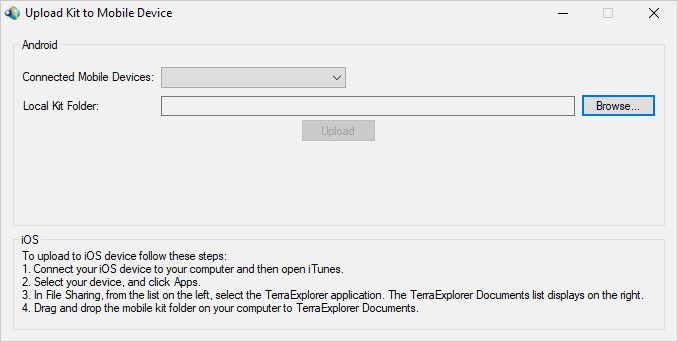
Upload Kit to Mobile Device
3. In the Connected mobile devices field, select the device to which you want to upload the mobile kit.
Note: If your device has an SD card, separate options will generally appear for the device and the SD card. In some devices and versions, the SD card is not recognized.
4. Browse to the location on your computer of the kit you are uploading, and click Upload. The kit is copied to a preconfigured TerraExplorer folder on your device.
TerraExplorer objects supported on mobile version
While most TerraExplorer Desktop objects and layers are supported in the TerraExplorer for Mobile (Native) app v7.0.1, there are some that either are not supported or do not display/operate as expected on older operating systems and devices. These include: video on terrain, CPT point clouds, elevation layers, KMZ, and PDF, and several analysis objects. Note that the Best Path analysis object should be removed from a project before publishing to a local kit, because its inclusion in the project will prevent the FLY file from opening. For editable feature layers, it is recommended to use GeoPackage or shapefile formats, to ensure proper support.