Loading 3D layers
TerraExplorer Pro loads a 3D layer as a layer object, which is then displayed in the Project Tree. After loading the layer from file or server, you can set its appearance and parameters in the layer’s property sheet.
You can load 3D layers in 3DML, Open3DML (o3dml) or OGC 3D Tiles formats:
§ 3DML or Open3DML from SkylineGlobe Server
§ OGC 3D Tiles from Cesium Ion
You can also import the following formats and convert to 3DML:
§ Building Information Modeling (BIM)
Loading 3D layers from file
You can load from a file 3D mesh layers in 3DML and Open3DML (.o3DML) formats and 3D Gaussian Splatting (3DGS) in o3DML format.
To load a 3D layer from a file:
1. On the Home tab, in the Add group, click the arrow next to 3D Layer, and select 3D Layer from File. The Load 3D Mesh and 3DGS dialog is displayed.
2. Browse to the required file, and click Open.
3. After the layer has been placed on the terrain, you can change its properties using the property sheet. See "Setting and Editing 3D Layer Properties" in this chapter for further information.
Loading 3D layers from SkylineGlobe Server
You can load 3D layers that are published to SkylineGlobe Server. For information on loading layers from SGS, see "Loading SkylineGlobe Layers" in the "Working with SkylineGlobe Server" chapter.
To load a 3D layer from a SkylineGlobe Server:
1. On the Home tab, in the Add group, click the arrow next to 3D Layer, and select SkylineGlobe Server. The SkylineGlobe Layers dialog is displayed.
2. If you aren’t already logged in to the required SkylineGlobe Server, log in to the server. See "Logging In to a SkylineGlobe Server" in the "Working with SkylineGlobe Server" chapter for information.
3. Search for the required layer. See "Searching for SkylineGlobe Layers" in the "Working with SkylineGlobe Server" chapter.
4. Select the layer you want to load, and click Load Layer.
5. After the layer has been placed on the terrain, you can change its properties using its property sheet. See "Setting and Editing 3D Layer Properties" in this chapter for further information.
Loading OGC 3D Tiles from a server
TerraExplorer can also load mesh and 3D Gaussian Splatting (3DGS) layers in OGC 3D Tiles format from a server. It supports both refinement modes (ADD and REPLACE) and is compatible with 3D Tiles version 1.0 (B3DM 2.0) and version 1.1 (GLB 2.0).
To load 3D layers in OGC 3D Tiles format:
1. On the Home tab, in the Add group, click the arrow next to 3D Layer, and select 3D Tile from URL. The Load 3D Tile – B3DM dialog is displayed.
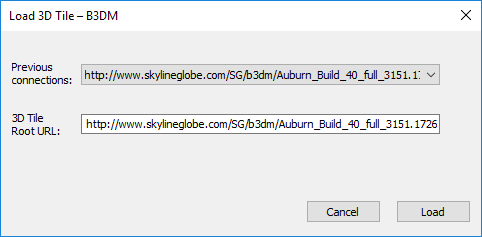
Load 3D Tile – B3DM Dialog
2. Select a Previous connection or type the URL to the 3D Tile’s root file, e.g., http://www.skylineglobe.com/SG/b3dm/Auburn_4TEDF/tileset.json.
3. Click Load. The 3D Tile is loaded into the project and listed in the Project Tree.
Loading 3D Tiles from Cesium Ion and Google Maps Platform
TerraExplorer can load standard OGC 3D Tiles from Cesium ion, and Google's Photorealistic 3D Tiles from Google Maps Platform.
To load 3D Tiles:
1. On the Home tab, in the Add group, click the arrow next to 3D Layer, and select 3D Tile from URL. The Load 3D Tile – B3DM dialog is displayed.
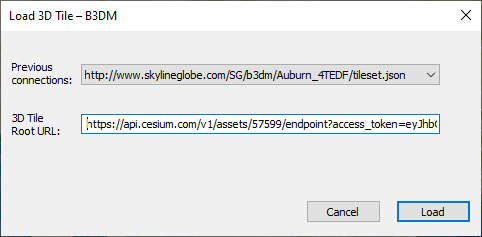
Load 3D Tile – B3DM Dialog
2. In the 3D Tile Root URL field, paste the following string:
§ For Cesium -
https://api.cesium.com/v1/assets/[ASSETID]/endpoint?access_token=[TOKEN]
Where:
ASSETID = The Cesium ion asset ID
TOKEN = The Cesium ion token
E.g.,
https://api.cesium.com/v1/assets/57599/endpoint?access_token=eyJhbGciOiJIUzI1NiIsInR5cCI6IkpXVCJ9.eyJqdGkiOiIxMjQ2YTVmMykjsdfY3LTQ2YjAtYTc2Zi1mYzEyMTAkMjFiMGJiLCJpZCI6MTQ4MTMsInNjb3BlcyI6VnJhc3IiLCJnYyJdLCJpYXQiOjE1NjYzODU5ODB9.fs_IBExCAiesNTn1OlsTPbm7ykJciiTWvHbYFqjfcns
§ For Photorealistic 3D Tiles from Google Maps -
https://tile.googleapis.com/v1/3dtiles/datasets/CgIYAQ/root.json?key=[KEY]
Where KEY = The API key that you used to access 3D Tiles service.
3. Click Load. The 3D Tile is loaded into the project and listed in the Project Tree.